What’s new

Release notes.

A simple way to transfer files between your Mac and your server.

Version 0.5.0 · October 3, 2026.

Version 0.5.0Link to this version

Transfer folders. Keep your place.

  • Drag files and folders between Finder and Retriever to upload or download them.
  • Select multiple items and transfer them in order. Merge folders, replace or skip files, and cancel remaining transfers.
  • Turn on folder sync in Settings to keep Files and your Bash or Zsh terminal in the same folder.
  • Exit the shell to return to Files. Failed SSH connections keep their error details visible.
Version 0.4.0Link to this version

Upload files and open a terminal.

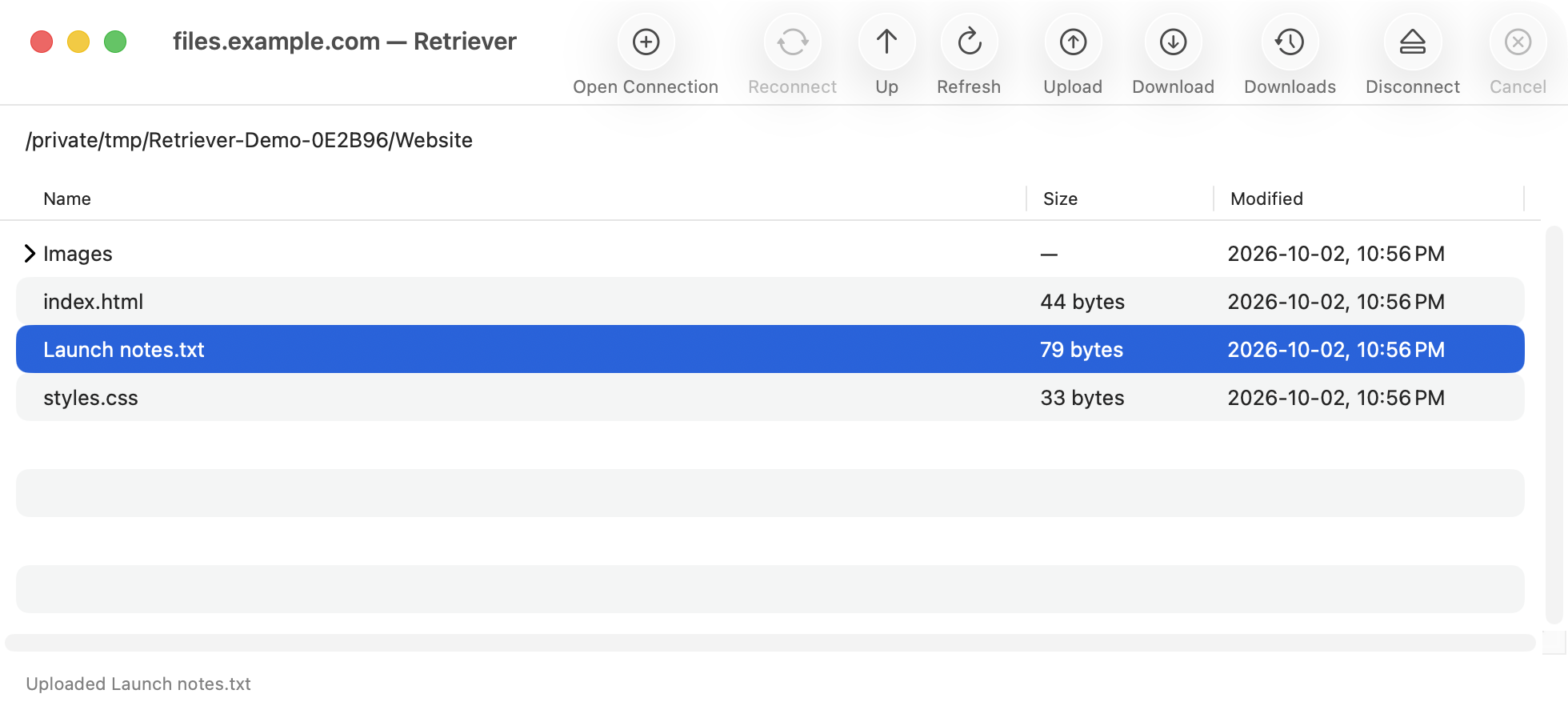
  • Choose Upload or press ⌘U to send a local file to the current remote folder.
  • Track progress, cancel transfers, and confirm before replacing an existing file.
  • The file list refreshes and selects your file after upload. Clear errors explain interrupted transfers.
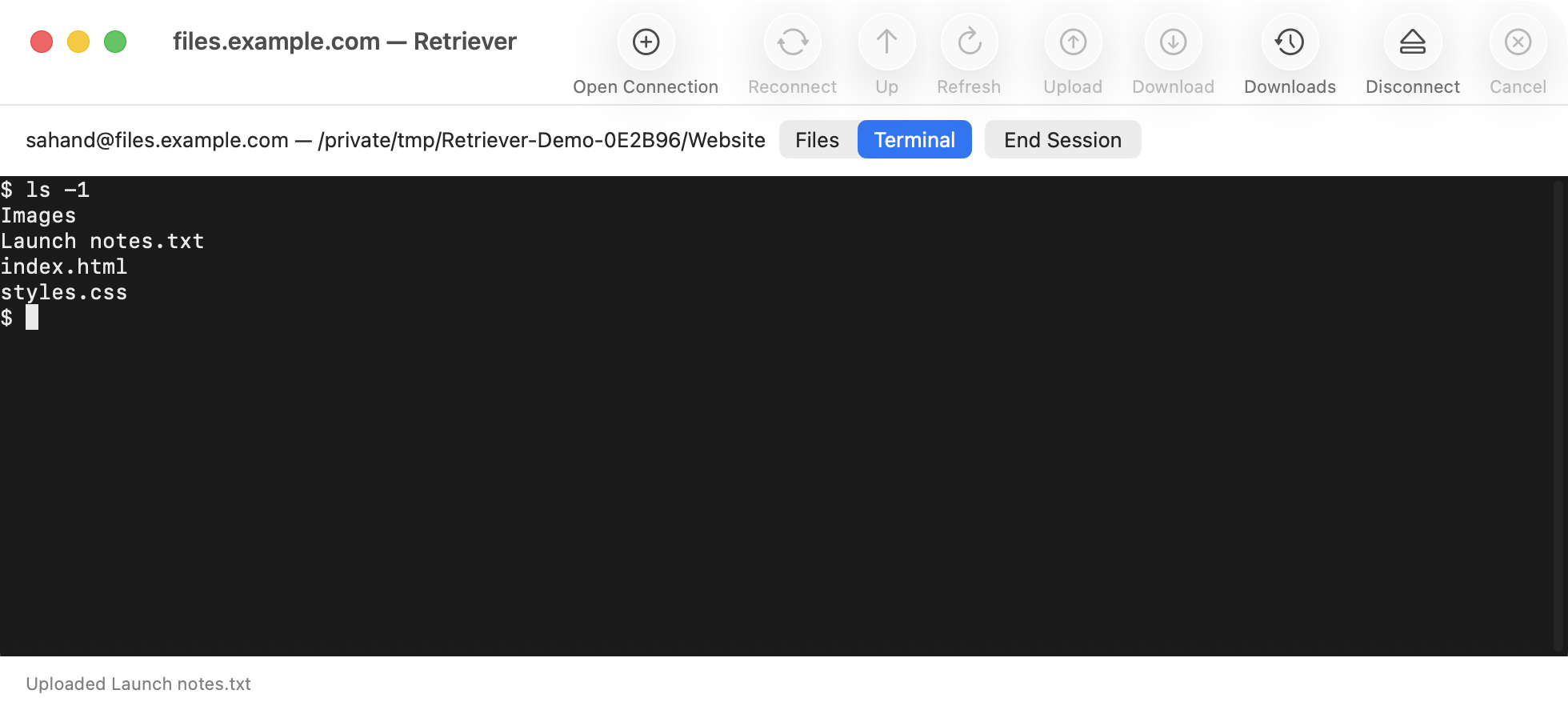
  • Right-click SSH into Folder to open a dark terminal in the browser. Files open at their parent folder.
  • Switch between Files and Terminal without ending SSH, or choose End Session to close it.
  • Smaller, optimized builds for Apple silicon Macs.
Retriever showing Launch notes.txt selected after a successful upload.
Upload a file to the current folder. Retriever refreshes the list and selects the uploaded file. View full size ↗
Retriever’s embedded dark SSH terminal listing the files in the selected folder.
Open SSH at the selected folder and switch between Files and Terminal without ending the session. View full size ↗

Requires an Apple silicon Mac with macOS 14 or later. Transfers support individual files; replacement requires server support for atomic rename. The terminal requires SSH shell access.
Version 0.3.0Link to this version

Browse, preview, and keep track of downloads.

Use the keyboard to browse and preview files, find completed downloads, and continue browsing after file errors.

Browse and preview with the keyboard

  • Press Space to preview the selected file. Press Escape to close the preview or cancel its download.
  • Arrow keys keep working after you expand a folder. Refresh preserves the selected file and expanded folders where available.
  • Files larger than 1 MB, or with an unknown size, require confirmation before preview. Retriever also checks the limit during download.

Find previous downloads

  • Open Downloads from the toolbar or Window menu, or press ⇧⌘J.
  • View completed downloads with their server, date, and size. Use Show in Finder to reveal a downloaded file.
  • Download history stays available after you restart Retriever. Clear History removes the records and keeps your files.
  • Previews, failed downloads, and cancelled downloads are not added to history.

Replace files and recover from errors

  • Choose Replace in the macOS Save dialog to overwrite an existing file after the download completes.
  • If the download fails or is cancelled, the existing file stays intact.
  • Ordinary file errors keep the connection available when possible.
  • If the connection is lost, the file list stays visible. Choose Reconnect to continue browsing.

Requires macOS 14 or later. FTP, uploads, folder downloads, and symbolic-link downloads remain unsupported.

Version 0.2.0Link to this update

Pick up where you left off.

Return to saved servers, expand folders in place, and preview files from the context menu.

Screenshots use sample connection details and files.

Saved hosts and folders

  • Successful connections are saved automatically with each host’s last visited folder.
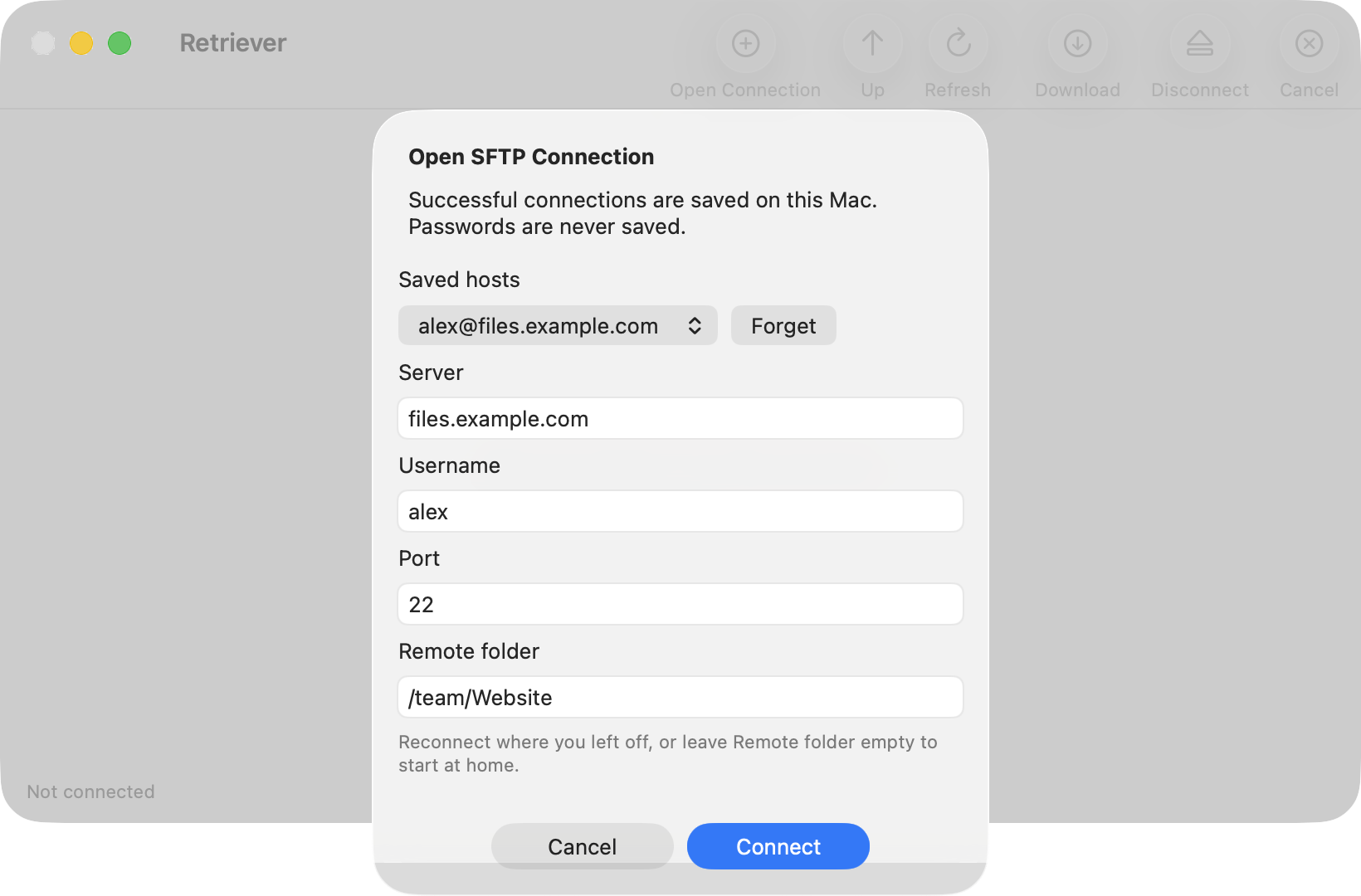
  • Choose a saved host in Open Connection, edit its starting folder, or use Forget to remove it.
  • If a saved folder is unavailable, Retriever opens the server’s home folder and shows a notice.
  • Passwords are never saved. Retriever does not connect automatically when it starts.
Open Connection with a saved host and its last remote folder selected.
Choose a saved host and return to its last folder. View full size ↗

Browse an expandable file tree

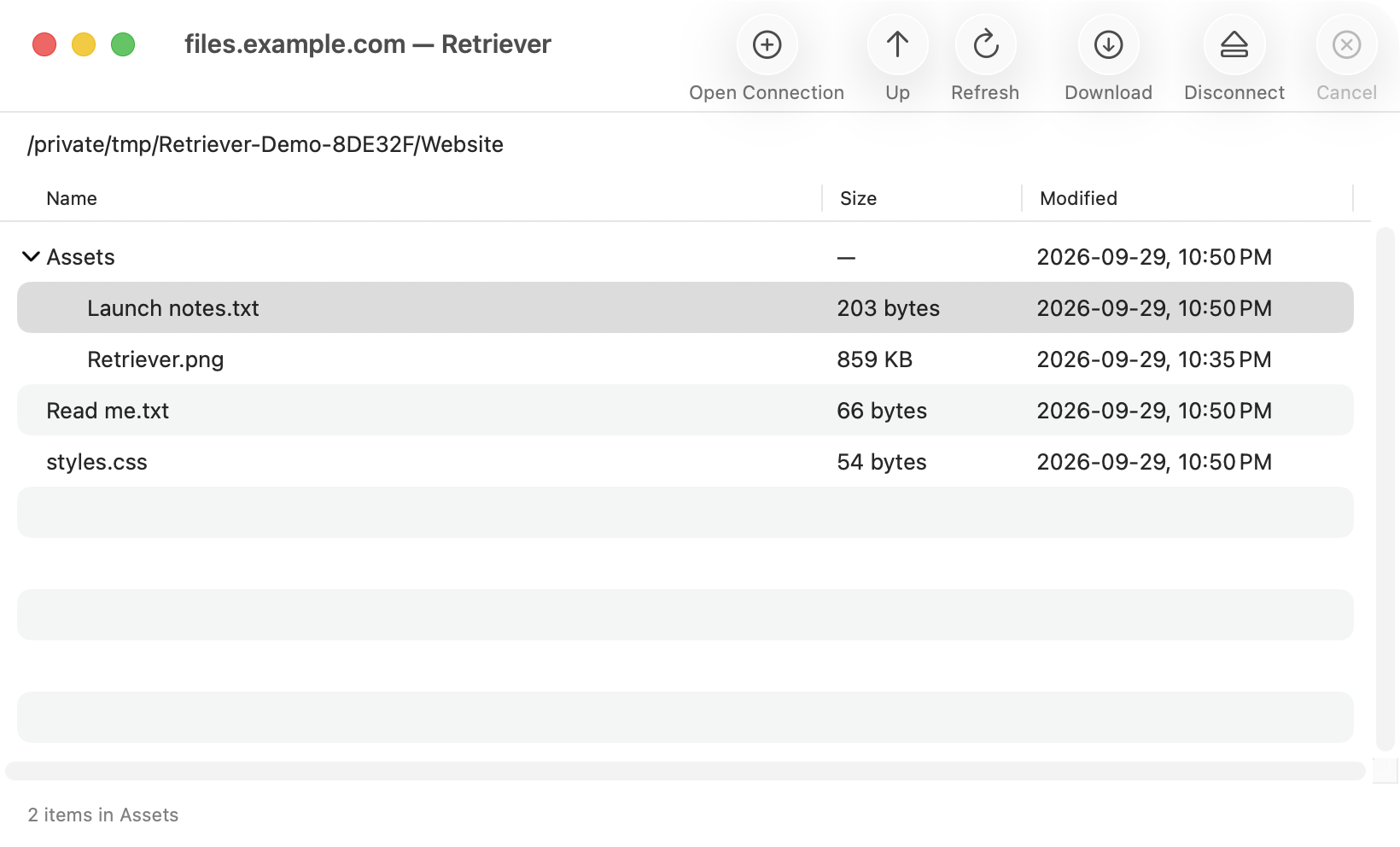
  • Click a folder’s arrow to expand or collapse it within the file list.
  • Browse nested folders and download their files without leaving the current directory.
  • Larger disclosure arrows and vertically centered labels make rows easier to read.
Retriever file browser with the Assets folder expanded to show its files.
Expand folders in place and select files from within the tree. View full size ↗

Preview from the context menu

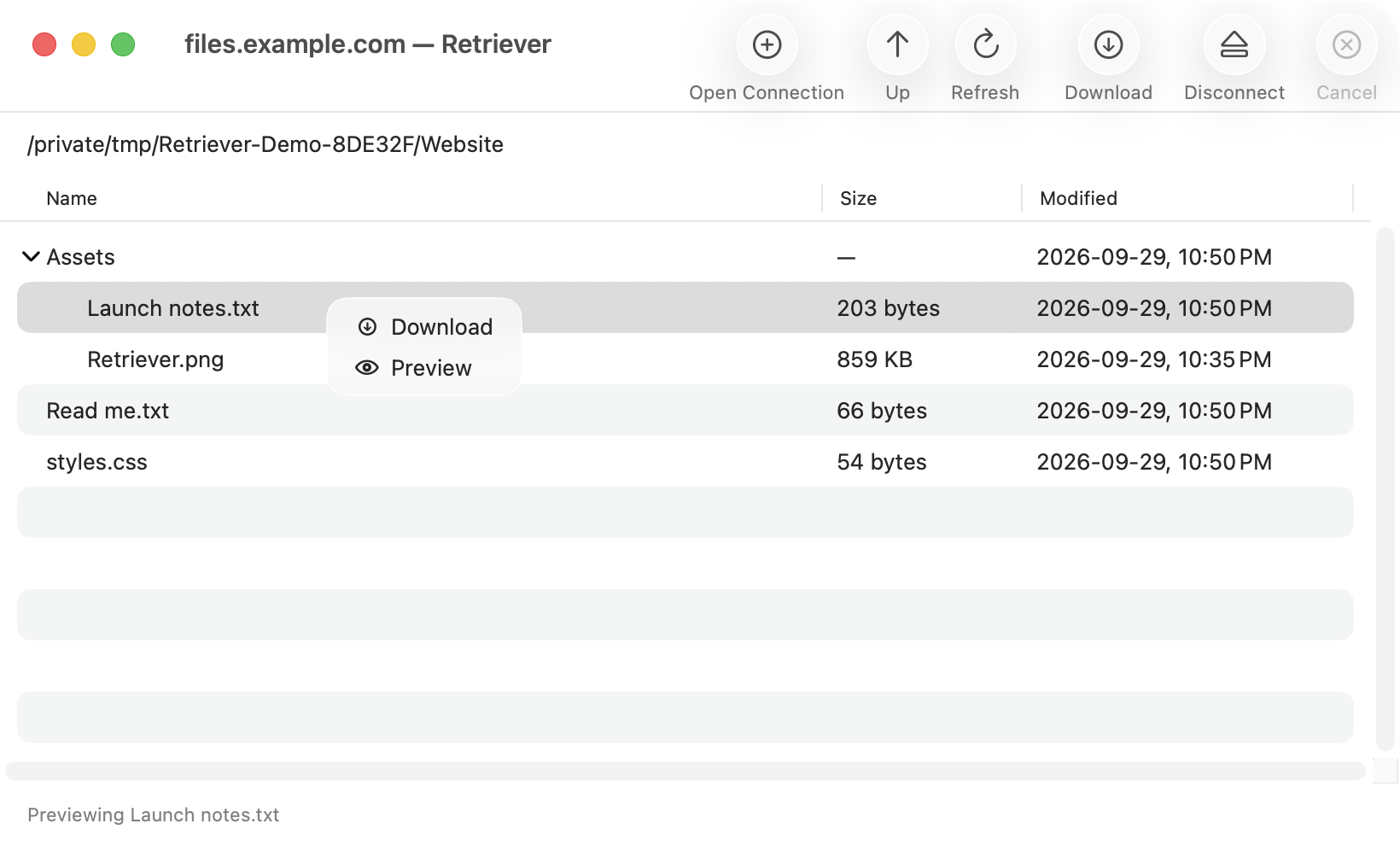
  • Right-click a file for Download or Preview.
  • Download opens the existing macOS Save dialog.
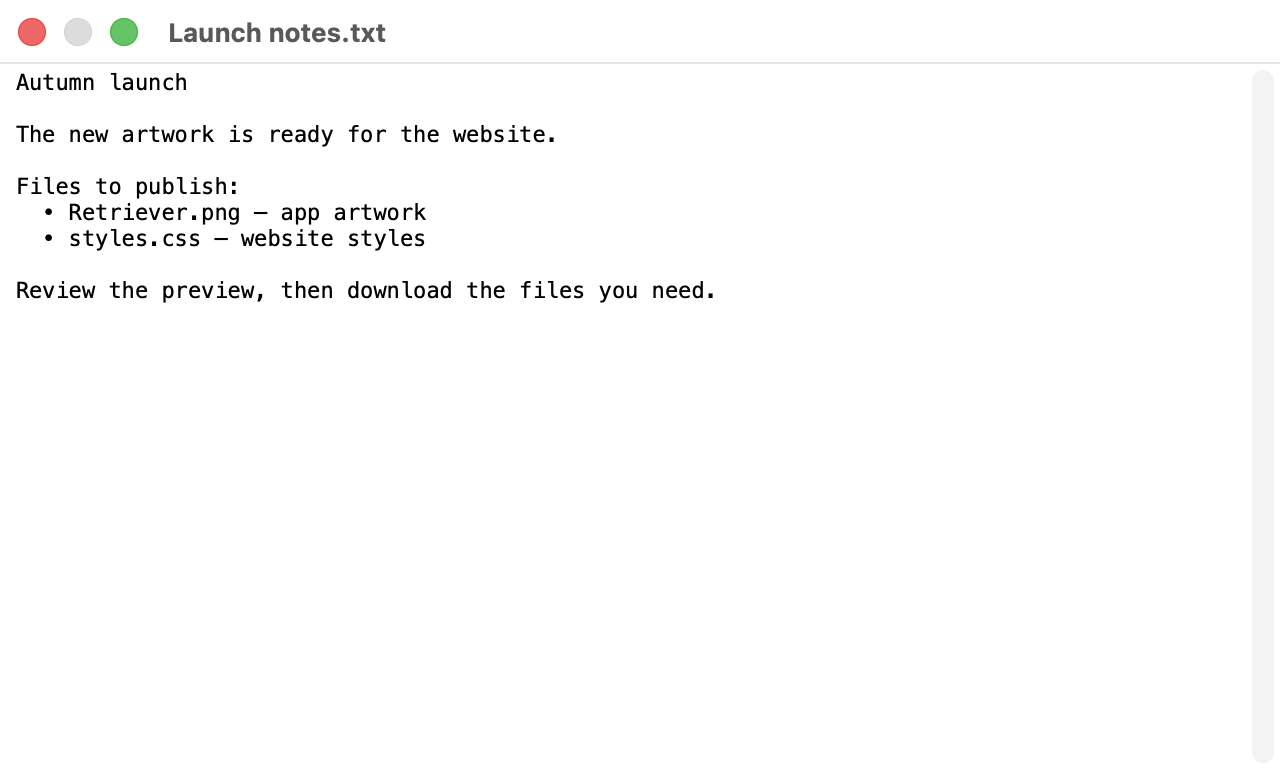
  • Preview retrieves a temporary copy and displays it in native Quick Look.
  • Temporary preview files are removed when the preview closes, is replaced, or the app quits. Preview downloads can be cancelled.
Right-click menu on a file with Download and Preview commands.
Right-click a file to download it or open a preview. View full size ↗
Quick Look window displaying the contents of Launch notes.txt.
Read a file in Quick Look before choosing where to save it. View full size ↗

A consistent app icon

  • The Dock and About panel show the Retriever icon with a rounded tile and transparent outer corners.

Requires macOS 14 or later. FTP, uploads, folder downloads, and symbolic-link downloads remain unsupported.

Version 0.1.0Initial versionLink to this version

Meet Retriever.

A native Mac app for connecting to an SFTP server, browsing its folders, and downloading individual files.

Connect and browse

  • Connect using SSH keys, an SSH agent, or a password.
  • Verify a new server’s fingerprint before connecting.
  • Navigate folders and view file names, sizes, and modification dates.

Download with control

  • Choose a destination with the native macOS Save dialog.
  • See how many bytes have been received and cancel active work.
  • Preserve existing files and remove partial downloads after cancellation.

Made for macOS

  • Native menus, keyboard shortcuts, Help, and authentication dialogs.
  • macOS 14 or later; Apple silicon and Intel builds.
  • This version supports SFTP and individual file downloads. FTP, uploads, folder downloads, and symlink downloads are not supported.

Version 0.5.0

Download for Mac ↓